Most people use Onomo like a collection of separate apps — make a beat here, maybe make some cover art there, never connecting the dots. That works, but it misses the entire point. Onomo's real power is that the surfaces talk to each other: a song's data flows into your cover, your lyrics flow into your video, your tools hand off to each other. Use that, and you can take a raw idea all the way to a release-ready song, cover, and video in a single sitting.
Here's the power-user workflow, start to finish, that strings it all together.
The big idea: one project, many surfaces
Before the steps, the mental shift: stop thinking "I'll make the song, then export it, then start over somewhere else for the artwork, then export that, then start over again for the video." That export-and-restart loop is where momentum and time die.
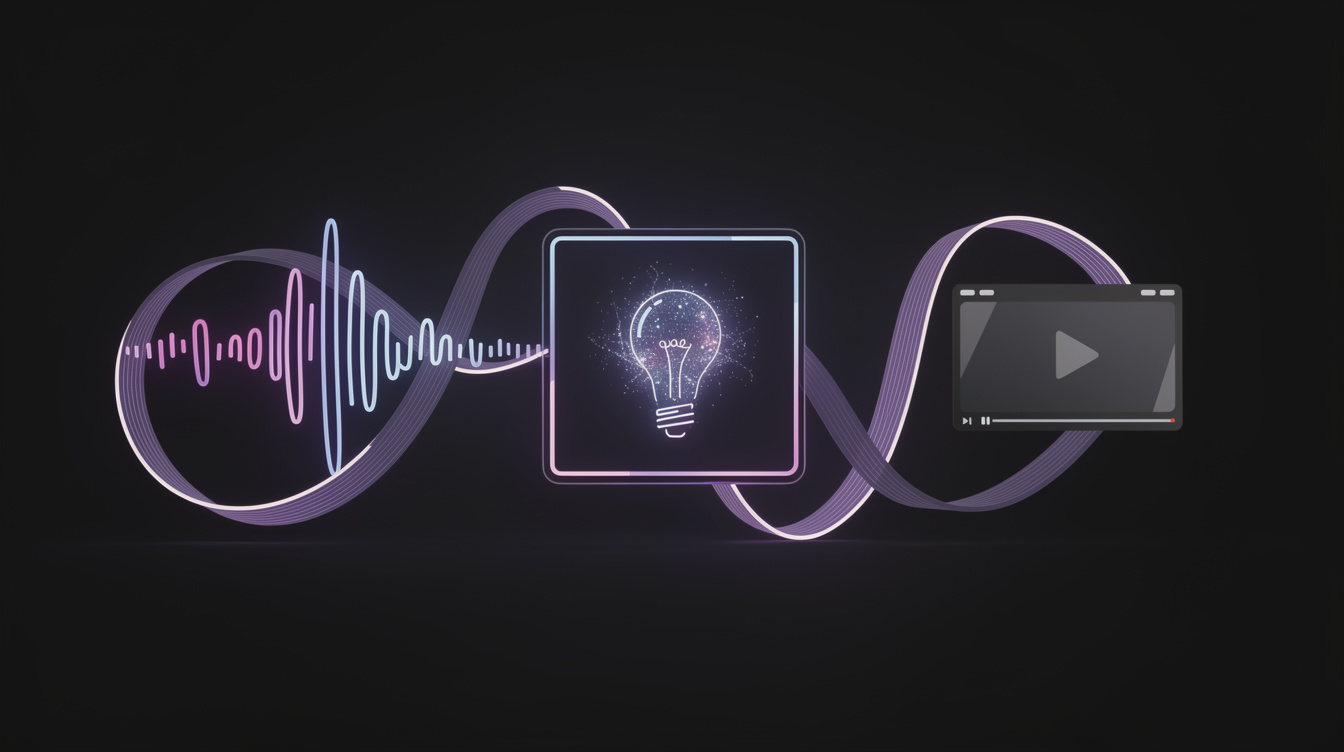
Instead, think of it as one creative session that moves through surfaces — Journal → Studio → Canvas → Motion — carrying the same project with it. Data follows you. You're not rebuilding context at every step; you're continuing.
Step 1 — Capture the idea (Journal)
Start where the idea actually lives. Open Journal. If it's a lyric or a concept, drop it in Write — and lean on the 134k-word offline rhyme engine right there in the editor when you need a line. If it's a melody you hummed, the Memos mode records and transcribes it. If it's a vibe, the Brainstorm canvas lets you pin references, palettes, and fragments together.
The point: get the spark down in the place that's built for it, where it's already connected to everything downstream — instead of in some notes app you'll forget to check.
Step 2 — Produce the track (Studio + Foundry + Airess)
Move to Studio and build the actual song. The power-user accelerators here:
- Jumpstart with Foundry. Need drums fast? Foundry's free algorithmic Kit and Loop generators make genre-appropriate material instantly (no AI cost, no copyright baggage) and send it straight into your project.
- Let Airess break the blank page. Ask the AI assistant for a chord progression or a bassline in your style — it drops editable MIDI into the project, which you then shape. Starting point, not autopilot.
- Use the real depth. Program the groove with per-step velocity and probability, set up sidechain so the bass pumps under the kick, and treat it with the Super effects + a limiter on the master.
You don't have to do it all by hand from zero — you assemble from smart starting points and then make the creative calls. That's what makes this fast.
Step 3 — Make the cover (Canvas, "From Song")
Track's roughed in? Jump to Canvas and hit the "From Song" panel. It pulls your project's title, cover placeholder, and waveform straight in, so your design starts from the actual song. From there it's a real design editor — layers, 35-ish fonts, 3D extruded text, layer effects, and AI image generation (Scene / Sticker / Overlay / Edit) if you want to generate art. Build the cover, then export the whole Social Pack (every platform size at once) or set it directly as your project's cover.
No round-trip to a separate image app. The song you just made is already in the canvas.
Step 4 — Build the video (Motion)
Now the part that genuinely can't be done anywhere else this smoothly. Open Motion:
- Your lyrics are already there. Because lyrics live in one unified document, the words you wrote (and timed) in Journal flow into Motion's lyric layer already synced — no retyping, no re-timing. If you didn't time them yet, Motion can auto-align them.
- Bind visuals to your music. Use stem-bound FX to make a title pulse on the kick, a glow track the vocal, a background warp with the bass. The video reacts to the actual parts of your song.
- Snap to the beat. The timeline snaps cuts to your song's bars and beats, so edits land musically.
- Export an MP4 in 9:16, 1:1, or 16:9 with per-platform settings.
A lyric or music video that would normally be its own multi-hour project becomes the last step of the session you're already in.
Step 5 — Export everything and ship
From Studio you bounce the master (WAV/MP3). From Canvas you grab the cover art (and all the social sizes). From Motion you download the video. Three deliverables, one session, one tab — ready to hand to a distributor and post.
Why this is faster than it sounds
The speed doesn't come from any one tool being magic. Studio is a solid DAW, Canvas a solid editor, Motion a solid video tool. The speed comes from never paying the context-switch tax: no exporting, no re-importing, no re-typing lyrics, no rebuilding your color story from scratch, no hunting for the file you bounced. The data follows you from surface to surface, so each step continues the last instead of starting over.
The power-user secret is simple: treat Onomo as one connected pipeline, not a drawer of separate apps. Run an idea through the whole loop once and you'll feel how much friction the integration removes, and how much more music you finish when finishing doesn't mean juggling five programs.
FAQ
Do I have to use every surface? No — use what the song needs. The workflow scales: sometimes it's just Journal → Studio → export. The point is that when you need the cover or the video, the song's data is already there waiting, so adding those steps is cheap.
Is this realistic to do in one sitting? For a focused single, yes — that's the whole design. Bigger or more polished projects naturally take longer, but the idea-to-rough-release loop genuinely fits in one session because you're not rebuilding context between tools.
What carries over between surfaces automatically? Your song's title, cover, and waveform flow into Canvas ("From Song"); your lyrics flow into Motion already synced; your project's key/tempo travel with it; and the toolkit tools (Stem Splitter, Audio to MIDI, the Quick Tools) hand their output onward.
Is it all free? The workflow runs in your browser; the core tools are free. A few AI features (Airess generations, AI image generation, neural stem separation) use credits, but the pipeline itself — and the handoffs that make it fast — are just there.
The magic is the connections. There's more Mastering Onomo on the features people miss and getting pro results in the browser.
Ready to try it yourself?
Onomo is a full DAW in your browser — synths, drums, effects, and export. Free to start, nothing to install.
Open Onomo and run it