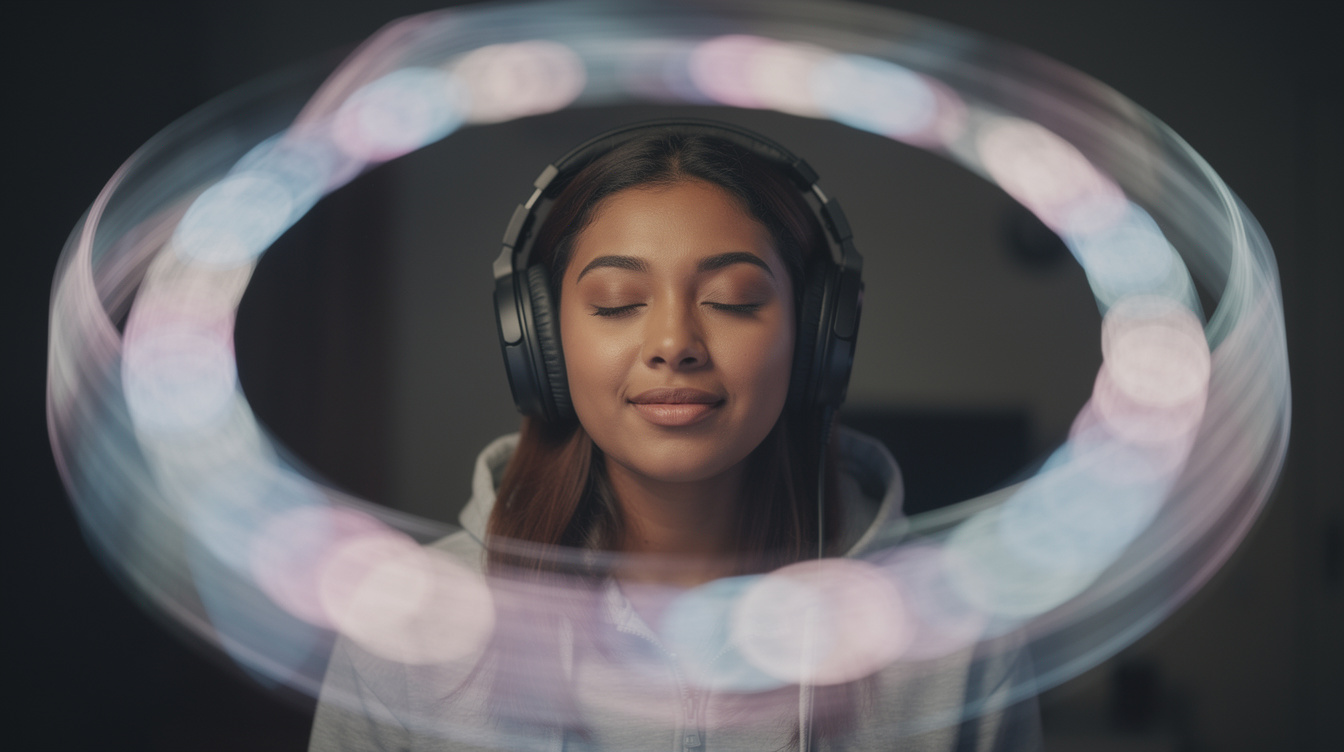
Put on headphones, play an "8D audio" version of a song, and it sounds like the music is physically orbiting your head — drifting from your left ear, around the back, over to the right, and back again. It's a striking illusion, it's racked up billions of views on YouTube, and you can make your own version of any song in about a minute.
Here's how 8D audio actually works, and how to make it for free in your browser.
What is 8D audio?
Despite the name, there's no such thing as "8 dimensions" of sound — it's a marketing term. 8D audio is a stereo effect that creates the illusion of sound moving in a circle around your head. It does this with two tricks working together:
- Panning — the audio is automatically swept back and forth between the left and right channels, so the source seems to move.
- A synced filter and a touch of reverb — as the sound "moves away," it's subtly filtered and spaced, mimicking how your ears perceive a real sound traveling around a room.
Because the whole effect relies on the difference between your left and right ears, 8D audio only works on headphones. On speakers, the illusion collapses.
What you need
- Headphones (this is non-negotiable — the effect doesn't exist without them).
- A browser.
- The song file (MP3 or WAV).
- The free 8D Audio tool, which processes everything locally — nothing uploaded.
How to make 8D audio, step by step
1. Load your track
Open the 8D Audio tool and drop your file in. It loads locally and instantly.
2. Set the spin (how fast it orbits)
The spin control sets how quickly the sound circles your head. Slower is usually more pleasant and immersive; very fast spins can feel dizzying.
- Slow spin — a gentle, drifting orbit. Best for most songs.
- Faster spin — more obvious movement, good for showing off the effect.
Start slow and speed it up only if you want the motion to be more dramatic.
3. Set the width
Width controls how far out to the sides the sound travels — how "wide" the orbit feels. More width makes the movement feel bigger and more enveloping. Push it up for a stronger sense of space.
4. Set the room
A little room (reverb) sells the illusion that the sound is moving through real physical space rather than just flicking between two speakers. Add enough to feel spacious without washing the song out.
5. Export and share
When the orbit feels right on your headphones, export. You've got an 8D version ready to post — just remember to label it "8D audio · headphones required" so people get the full effect.
Tips for the best 8D audio
- Slower spins feel more premium. A frantic spin gets old fast and can make people dizzy. A slow, smooth orbit is what the best 8D edits use.
- Songs with space work best. A track with clear vocals and instruments separated in the mix shows off the movement better than a dense wall of sound.
- Don't max everything. Extreme width + fast spin + heavy room can feel disorienting rather than immersive. Tasteful settings sound more impressive.
- Always preview on the headphones you expect listeners to use — earbuds and over-ears can feel slightly different.
FAQ
Is the 8D audio tool free? Yes — free, runs in your browser, nothing uploaded. No account needed.
Why doesn't 8D audio work on my speakers? The effect depends on feeding slightly different sound to each ear. Speakers blend into the room and into both ears at once, so the illusion can't form. Headphones (or earbuds) are required.
Is 8D audio actually "8 dimensions"? No — it's a catchy name for a stereo panning + filtering effect. There aren't literally eight dimensions; it just feels spatial.
Will my song be uploaded anywhere? No. All processing happens locally on your device.
Can I make 8D audio on my phone? Yes — process it in a mobile browser, and listen on wired or wireless headphones.
Make 8D audio now
Put on your headphones, open the 8D Audio tool, drop in a song, set a slow spin with a wide orbit and a little room, and export. Then sit back and let the music circle your head.
Ready to try it yourself?
Onomo is a full DAW in your browser — synths, drums, effects, and export. Free to start, nothing to install.
Open the 8D Audio tool