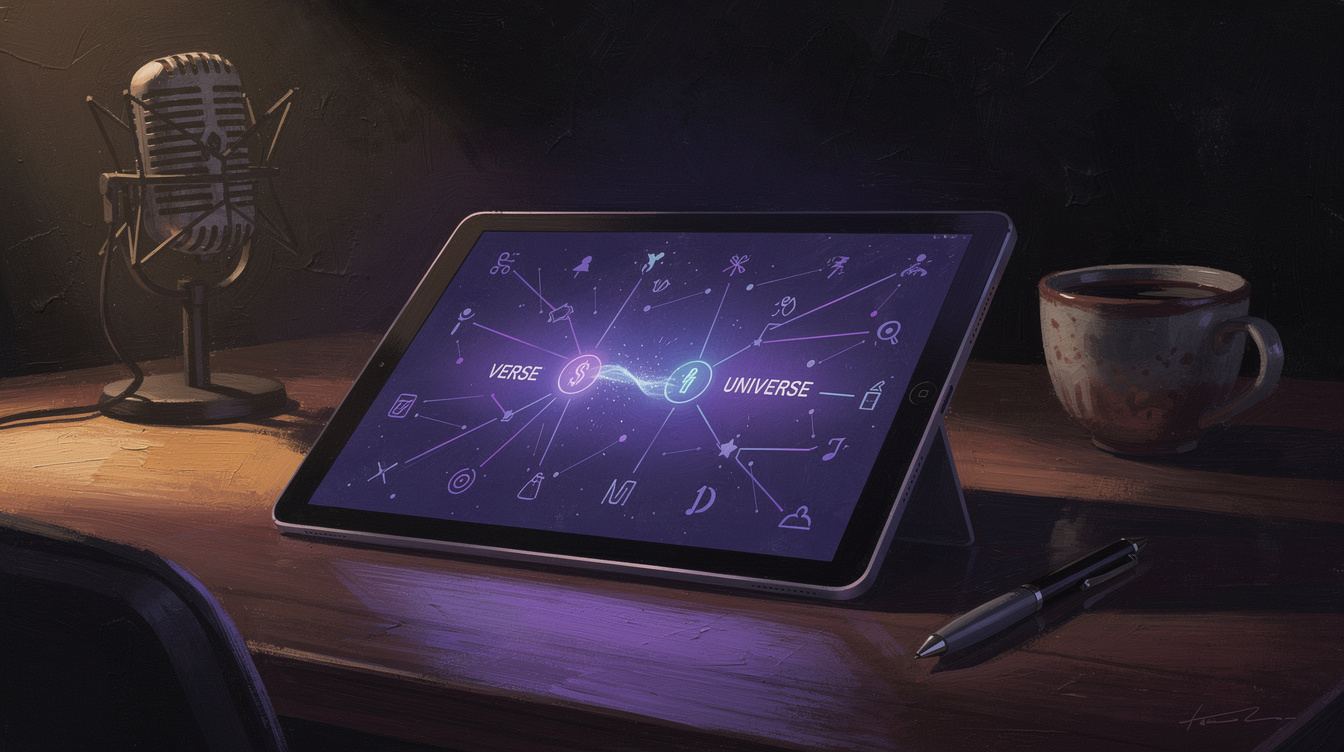
You've seen audio-reactive visuals — a shape that pulses with the music, a glow that throbs on the beat. Most tools that do this react to the whole mix at once: everything moves together because they only see one overall loudness number. The result is fine, but mushy. What makes a visual feel designed is when the screen shakes on the kick specifically, the text glows when the vocal comes in, and the background warps with the bass — different elements reacting to different parts of the song.
That's exactly what Onomo's Motion editor does, and it's the feature that sets it apart. Here's how to use it.
What "stem-bound" means
A stem is one element of a song — the kick, the snare, the bass, the vocal. Motion analyzes your loaded audio and pulls out the energy of several of these elements over time, then lets you bind any visual parameter to any one of them.
The bindable sources are:
- Kick — the punchy low thump (great for impacts and screen shakes).
- Snare — the sharp backbeat hit (great for flashes and quick pops).
- Bass — the sustained low end (great for slow warps and swells).
- Vocal — the melodic mid-range (great for glows and emphasis when the voice enters).
- Mid — overall loudness over time (great for general movement).
And you can bind them to visual parameters like scale, position (x/y), rotation, opacity — and the parameters of effects (blur amount, glow intensity, color, and more).
So "make the title pulse with the kick" becomes: bind the text layer's scale to the kick. "Make the background glow when the vocal hits" becomes: bind a glow effect's intensity to the vocal. The visual now moves with that specific part of the music, automatically, for the whole song.
How to bind a visual to a stem
The workflow is direct:
- Load your song onto the timeline. Motion analyzes it and shows you a waveform for each stem (kick, snare, bass, vocal, mid), each in its own color, so you can see where the energy is.
- Add the layer you want to react — a piece of text, a shape, an image, a generated background, or one of Motion's built-in effects.
- Bind a parameter to a stem. Pick the parameter (say, scale), grab a stem source (say, kick), and connect them.
- Dial it in. Set the gain (how strongly the stem drives the parameter — turn it negative to invert the reaction), an offset (the resting value), and a touch of smoothing if you want the motion less jittery.
Hit play and the visual moves with the music — no keyframing by hand, no clicking out every beat. The binding follows the song the whole way through.
Build a reactive piece, layer by layer
The payoff is in combining bindings so different things react to different parts:
- Title → scale bound to the kick, so it punches on every kick hit.
- Background → a warp or blur bound to the bass, breathing slowly with the low end.
- A glow or color shift → bound to the vocal, lighting up when the voice comes in.
- A particle burst or flash → bound to the snare, snapping on the backbeat.
Now your visual has layers of reaction that mirror the actual arrangement of the song — which is what makes it feel directed instead of generic.
Beyond reactions: a full music-video editor
Stem-binding lives inside a complete browser video editor, so a reactive visual is just the start:
- A beat-grid timeline that snaps clips to the song's bars and beats, so cuts land on the music.
- A deep text engine with a big library of animated typographic styles (great for titles and lyric videos).
- A stack of effects (glitch, grain, RGB-split, color grading), transitions, audio-reactive generators (starfields, plasma, waveform bars), and particles.
- Export to MP4 in every aspect ratio — 9:16 for Reels and TikTok, 1:1, 16:9 for YouTube — with bitrate presets per platform.
You can build the whole video — visuals, cuts, text, export — in one browser tab.
Where this shines
- Visualizers for a track or beat drop, where the whole point is that the picture moves with the sound.
- Lyric videos with title text that pulses on the beat instead of sitting static.
- Beat-seller posts where a waveform and a reactive backdrop sell the energy in three seconds.
- Reels and shorts that feel produced because the visuals are locked to the music, not floating on top of it.
FAQ
Is Motion free? It runs in your browser. You can build and export reactive videos; nothing installs.
Do I need to provide separate stems? No. Motion estimates the kick, snare, bass, vocal, and overall energy from your single mixed song, in the browser. No stem files required.
Is it real source separation? It's an approximation via frequency analysis, tuned to drive visuals — not a full neural stem split. It looks great on screen, which is what matters here. For isolated audio stems, use the Stem Splitter.
What can I bind? Visual parameters like scale, position, rotation, and opacity, plus the parameters of effects (blur, glow, color, and more), each to any stem source.
Does it work on my phone? Motion runs in a modern browser; the detailed binding and timeline work is much easier on a larger screen.
Make the picture move with the music
Open Motion, drop in a song, and bind a layer to the kick. Then add a glow on the vocal and a warp on the bass. In a few minutes you'll have a visual that reacts to the actual parts of your track — the difference between "has an effect on it" and "moves with the music."
Ready to try it yourself?
Onomo is a full DAW in your browser — synths, drums, effects, and export. Free to start, nothing to install.
Open Motion and try it