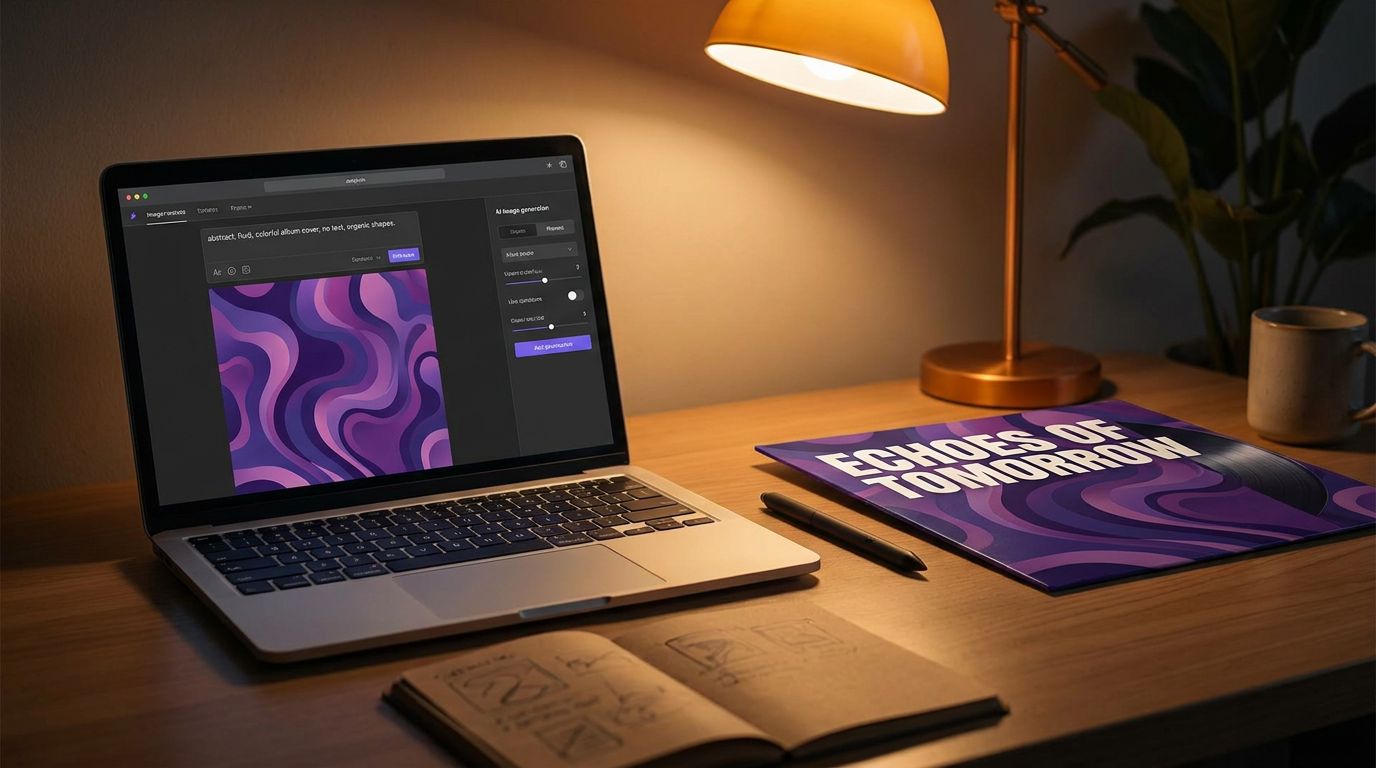
Typing "moody album cover, neon, cinematic" into an AI generator gives you a striking image. It does not give you a cover. A real cover has your artist name and title set in type that fits the mood, a composition that reads at thumbnail size, and the right dimensions for every platform. The image is the easy 80%; the design is the 20% that makes it look professional instead of generated.
Onomo's Canvas does both halves in one place: generate with AI, then finish like a designer. Here's the whole workflow.
Generate the image: four AI modes, not one
Most AI tools give you a single "make an image" button. Canvas gives you four generation modes because a cover needs different kinds of art in different layers:
- Scene — full text-to-image generation. Describe the world you want ("rain-soaked city at night, neon reflections, lonely figure") and it drops in as a new layer. This is your background or your hero image.
- Sticker — generates an isolated subject on a transparent cutout (the background is removed automatically). Perfect for a central object or character you want to float over your own background.
- Overlay — generates a texture or pattern designed to screen-blend over the whole canvas, for grain, light, or atmosphere on top of everything else.
- Edit — img2img: feed it a layer and a prompt to repaint or modify it. Change what's already there instead of starting over.
You can choose a quality tier and an aspect, generate up to a few options at once, and the cost per batch is shown up front so there are no surprises. There's also a one-click Enhance Prompt that polishes your description before generating.
Clean it up: background removal, upscale, adjust
Generated art rarely lands perfect. Canvas has the retouching tools to finish it:
- Remove Background — AI-powered cutout to isolate a subject from any image you bring or generate.
- Upscale — 2× or 4× AI upscaling so your cover holds up at full resolution.
- Adjustment layers — brightness, contrast, curves, levels, saturation, hue, temperature, and more, applied non-destructively so you can dial the whole piece to one cohesive mood.
Because adjustments are layers, you can tune the entire composition — image, type, and all — until it reads as one intentional thing rather than a collage.
The part AI can't do: type and composition
This is where a cover is won or lost, and it's all design, not prompting. Canvas is a full layer-based editor for exactly this:
- Typography — a curated library of fonts across display, serif, sans, script, and mono. Set your artist name and title, then style them with layer effects: drop shadow, glow, gradient or color overlay, and stroke. You can even put text on a path or use 3D extruded text (real depth, with materials like chrome, gold, and neon) when a flat title isn't enough.
- Layers and blend modes — stack image, text, and shape layers, reorder them, set opacity, and use blend modes (multiply, screen, overlay) to make the type sit into the art instead of on top of it.
- Shapes and masks — frames, geometric shapes, the pen tool, and masking to crop and compose deliberately.
The discipline that separates a real cover from a generated image: keep the title legible at thumbnail size, give the composition a clear focal point, and let the type's personality match the music. AI can make a beautiful image; you make it a cover.
Export for every platform at once
A finished cover needs to exist in a dozen sizes. Canvas ships a Social Pack that exports all the common ones in a single download — the big square master (3000×3000 for streaming art), Instagram post and story, TikTok, a YouTube thumbnail, a Twitter header, and a print-ready poster size — zipped together. You can also export a single PNG or JPG at 1×, 2×, or 3×, set the design directly as your track's cover, or post it to your feed.
Want it to move? Canvas's Loop feature animates your layers — drift, parallax, Ken Burns, pulse — and exports a looping MP4/WebM, the format you'd use for an animated streaming cover. (More on that in our animated cover guide.)
A quick start-to-finish flow
- Generate a background with a Scene prompt that captures the mood.
- Add a subject with a Sticker generation, or bring your own photo and Remove Background.
- Drop an Overlay for grain or light to tie it together.
- Set your type — title and artist name — and style it with layer effects so it reads at any size.
- Adjust the whole piece to one mood with adjustment layers.
- Export the Social Pack and you've got every size you need.
Fifteen minutes, no Photoshop, no design degree.
FAQ
Is the AI cover generator free? Canvas runs in your browser, free to use. AI image generation uses credits (with the cost shown per batch before you generate); all the design, type, and layout tools are free.
Can I use my own photos instead of generating? Yes — import any image and use the same layer, type, retouch, and export tools. AI generation is optional.
Will an AI-generated cover look generic? A raw generation can. The fix is the design layer — your type, your composition, your adjustments. Treat the AI image as raw material, not the finished product, and it won't.
What sizes does it export? Everything from a 3000×3000 streaming master down to social posts, stories, thumbnails, and a print poster — as individual files or one zipped Social Pack.
Does it work on my phone? Canvas runs in a mobile browser, though detailed layer and type work is far easier on a larger screen.
Generate, then design
Open Canvas, generate a striking image with the right mode, and then do the part that makes it a cover — the type, the composition, the polish. Great cover art is a prompt plus a designer, and Canvas gives you both.
Ready to try it yourself?
Onomo is a full DAW in your browser — synths, drums, effects, and export. Free to start, nothing to install.
Open Canvas and design a cover